Reviewing Imported Transactions
Last updated About 1 year ago
Mobile App
Mobile App
After linking a bank account or Gmail, transactions can be reviewed from the "Transactions" tab ➜ "New Transactions". Transactions in review must be saved to appear in the workspace or exports.
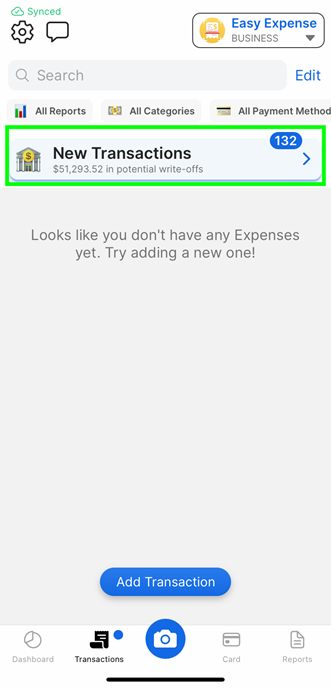
When Do New Transactions Appear?
When Do New Transactions Appear?
Bank transactions will appear within 1-2 days after being posted in the bank (no longer pending) and rarely, may take up to 7 days. As only 500 transactions are loaded at a time, please review more transactions if new ones are not appearing. Customer support can also clear up to a certain date of transactions for you.
Gmail (email receipts) are synced after receiving them or after 24 hours.
Email receipt forwarding are synced within a few minutes after sending them. A success email will be sent to you.
How to Review Transactions
How to Review Transactions
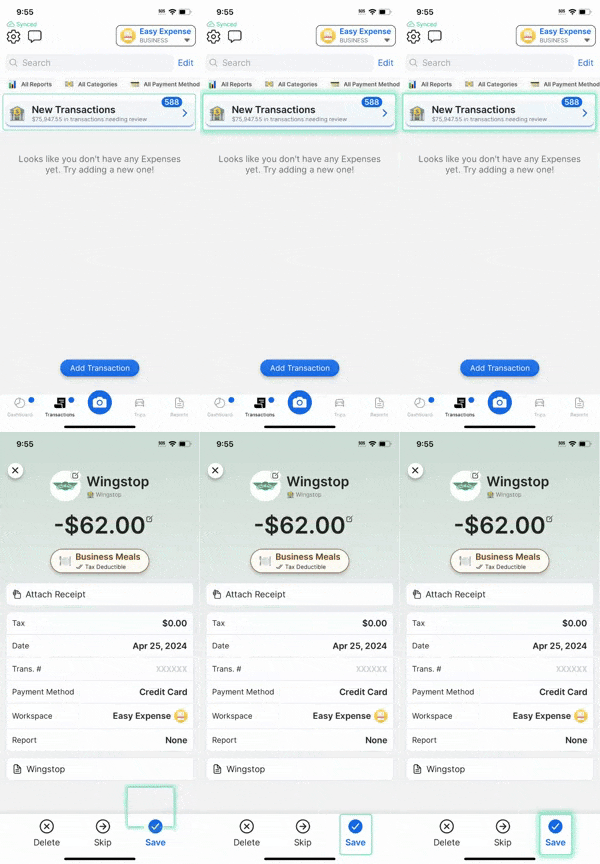
Tap the "Transactions" or "Dashboard" tab
Tap the "New Transactions" section
Tap any field to make any changes or attach receipts as desired
Tap "Save" to save the transaction OR
b. Tap "Skip" to go to the next transaction OR
c. Tap "Delete" to delete the transaction from review
Any changes (includes images) will be discarded after leaving the review, unless the transaction is saved.
Web App
Web App
Currently, you can only save forwarded email receipts on the web app. Transactions imported from the Email Scanner or from your bank/card need to be reviewed on the mobile app.
Open the web app
Click on “Transactions”
Click on “Email Receipts Ready for Review” bellow the “Transactions” title
Edit any field to make any changes or attach receipts as desired
Click "Save Expense" to save the transaction OR Tap "Delete Expense" to delete the transaction from review
Was this helpful?
Still need help? Share an idea