Manually Add Expenses
Last updated About 1 year ago
To manually add an expense
Mobile App
Mobile App
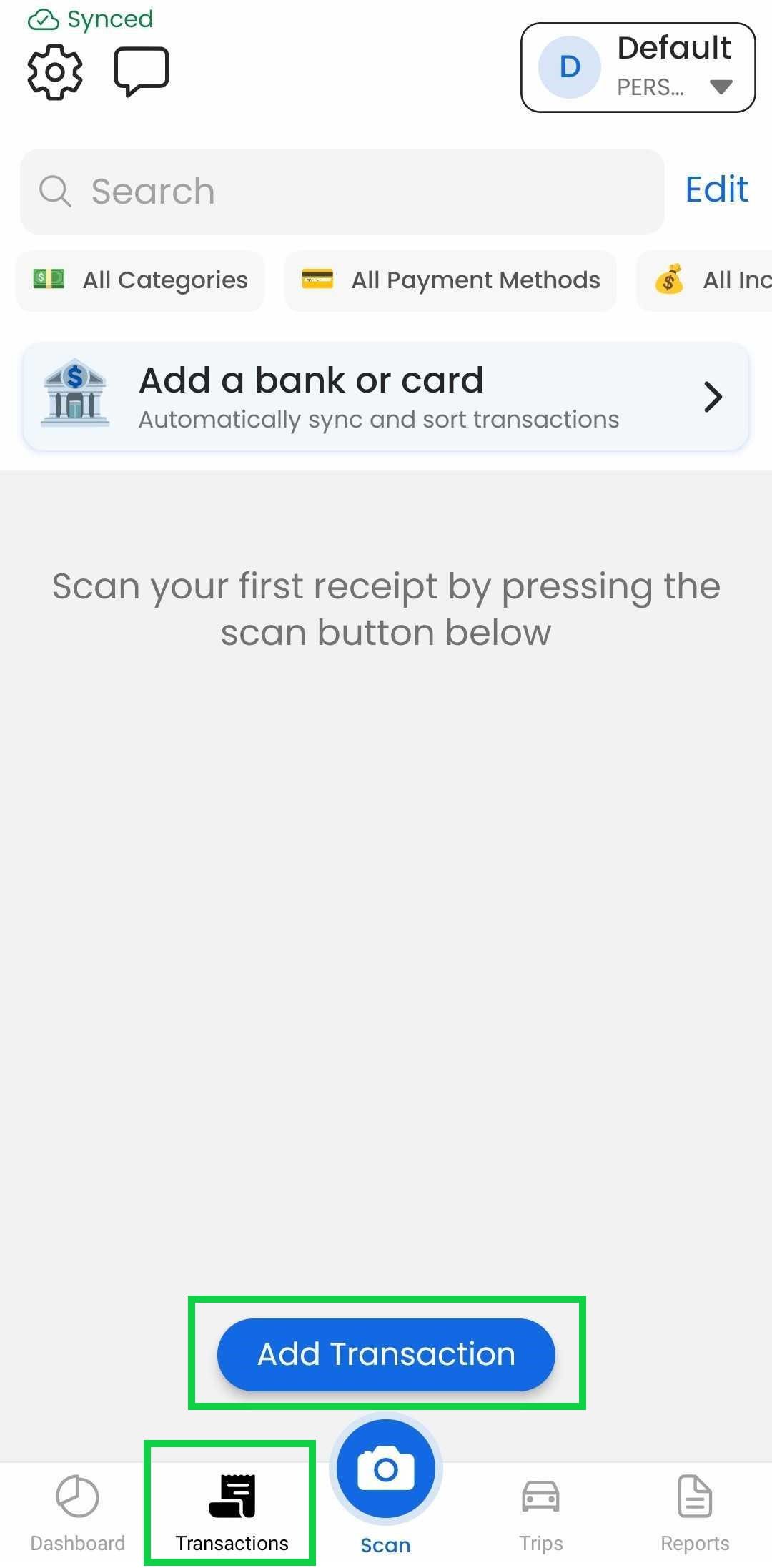
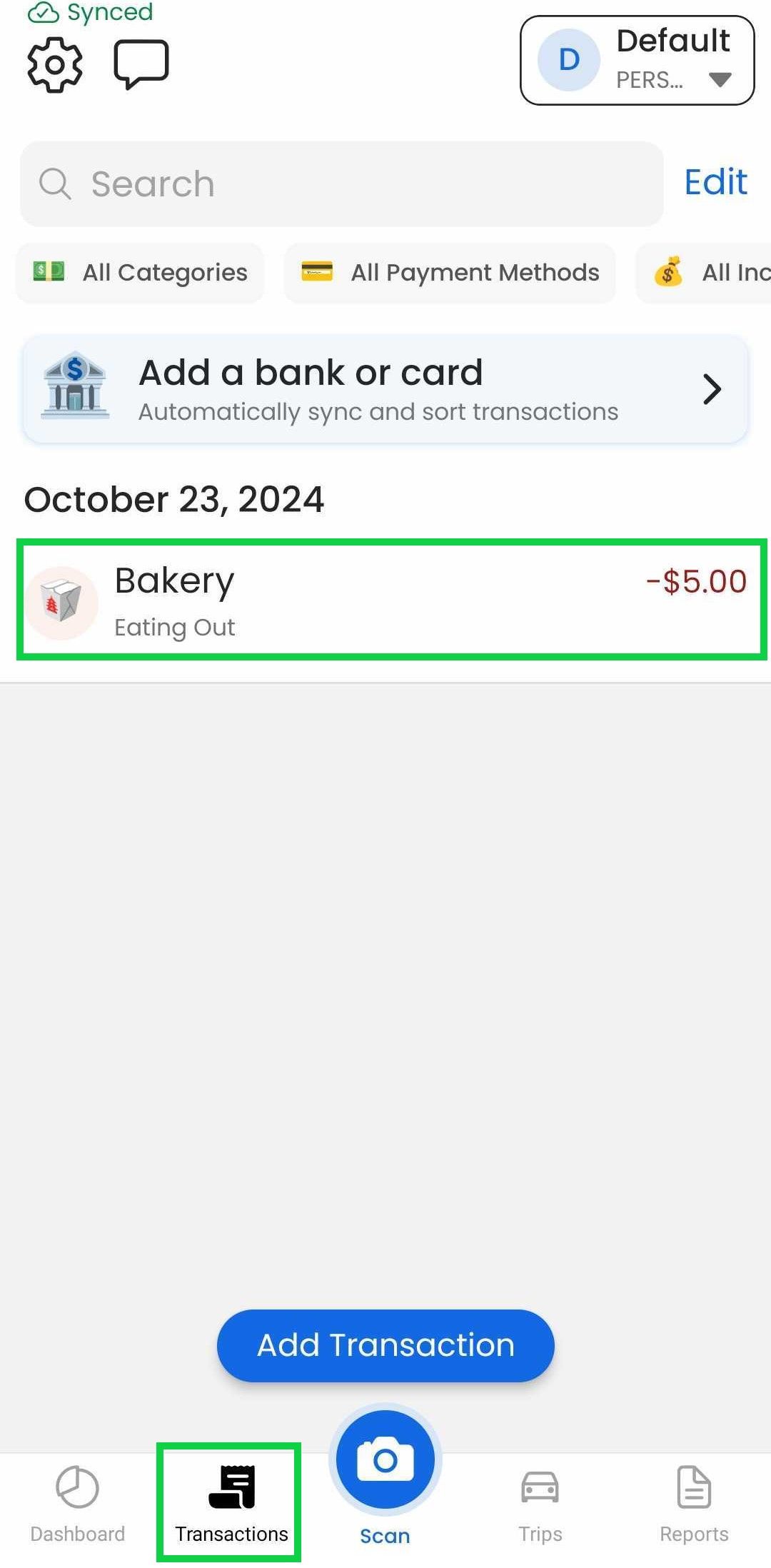
Tap the "Transactions" tab
Tap “Add Transaction”
Tap "Expense"
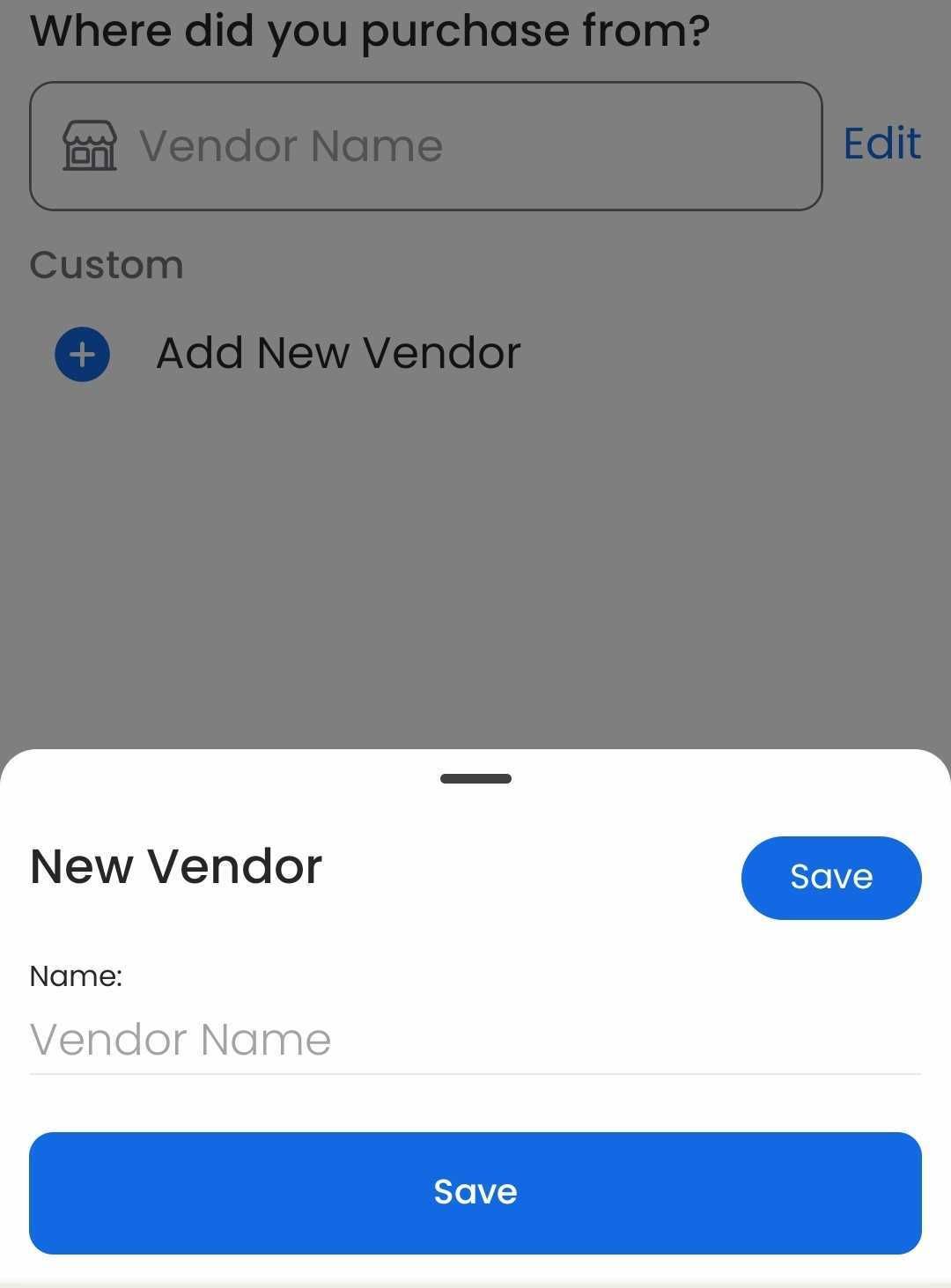
Select a vendor or add a new one
Select a category. Existing vendors will automatically select their last used category
Enter the total amount
Tap "Save"
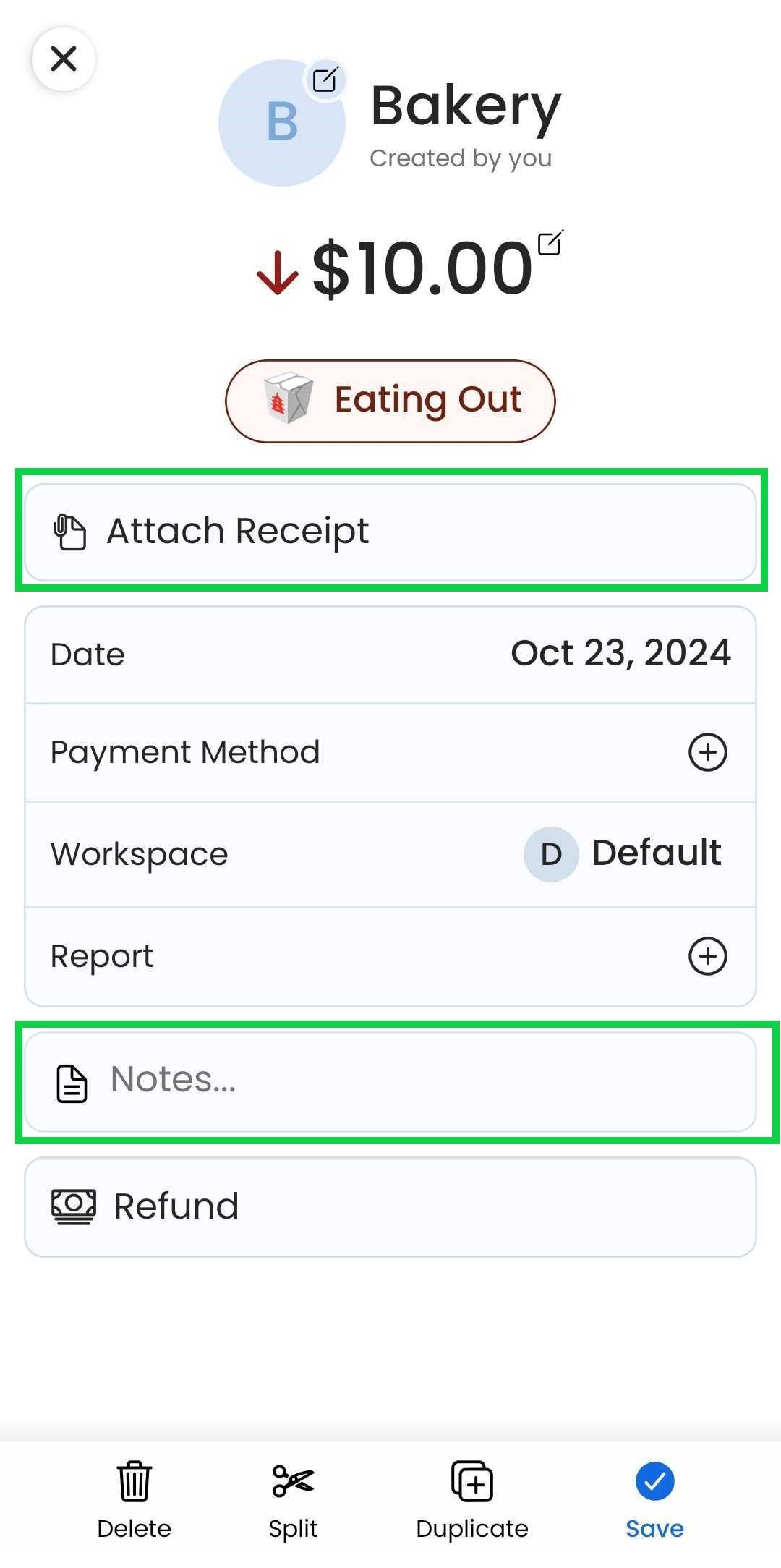
Input any note or receipt images
Tap “Save” on the bottom right corner
Web App
Web App
Open the web app
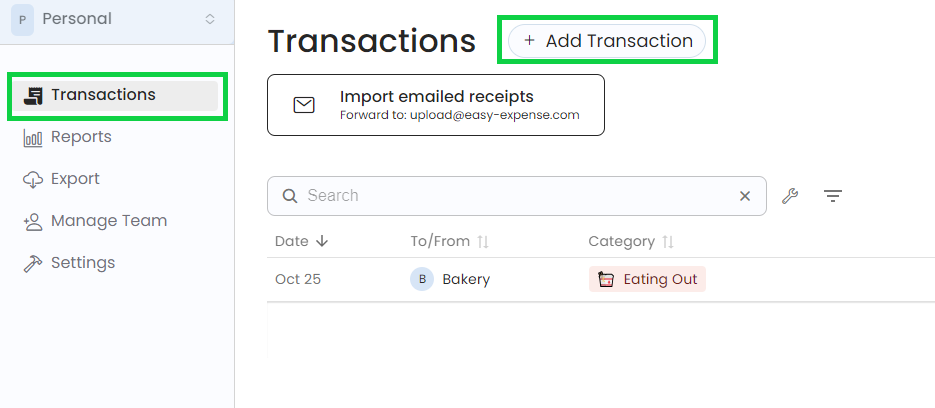
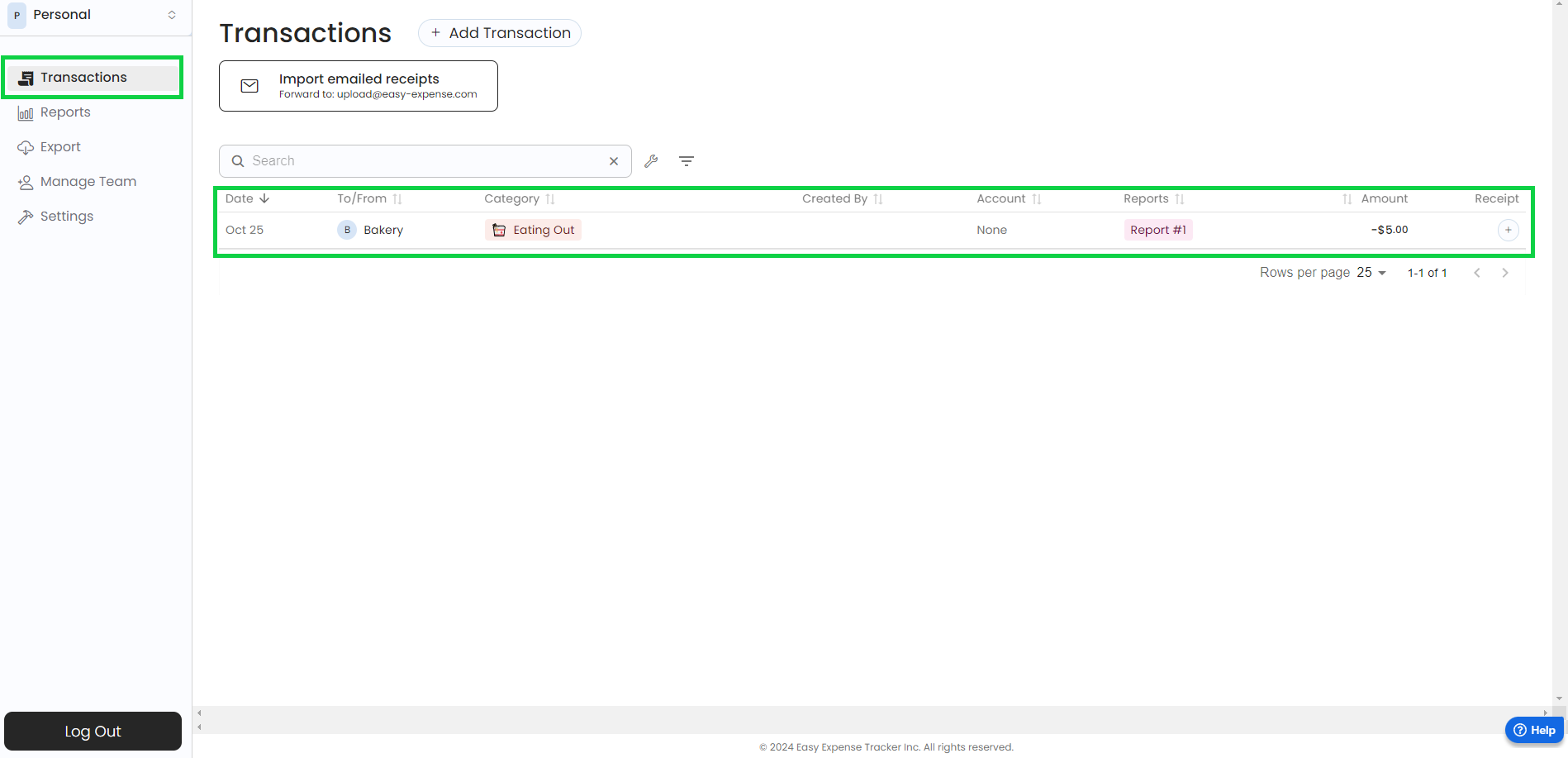
Click on “Transactions”
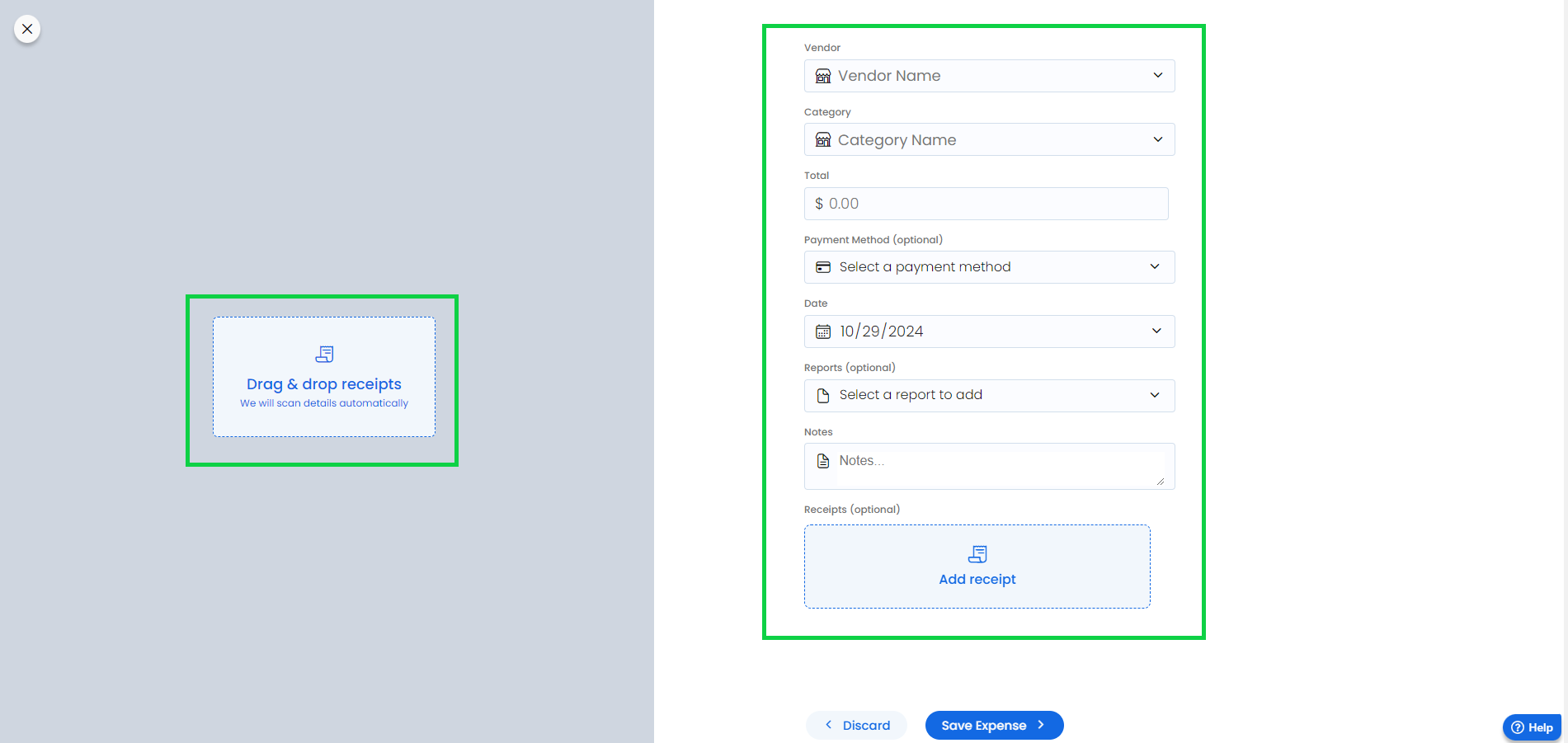
Click on “Add transaction”
Drag and drop the receipts you want to add
You can also edit the transaction fields as desired
Click on “Save Expense”
To edit an expense
Mobile App
Mobile App
Tap the "Transactions" tab
Tap the desired expense
Tap any field for quick editing
Tap "Save"
Web App
Web App
Open the web app
Click on “Transactions”
Click on the transaction you want to edit
Edit your transaction as desired
Was this helpful?
Still need help? Share an idea