Quick Editing Expenses
Last updated About 1 year ago
Scanning a receipt
You can edit your expenses while scanning or adding a receipt
Mobile App
Mobile App
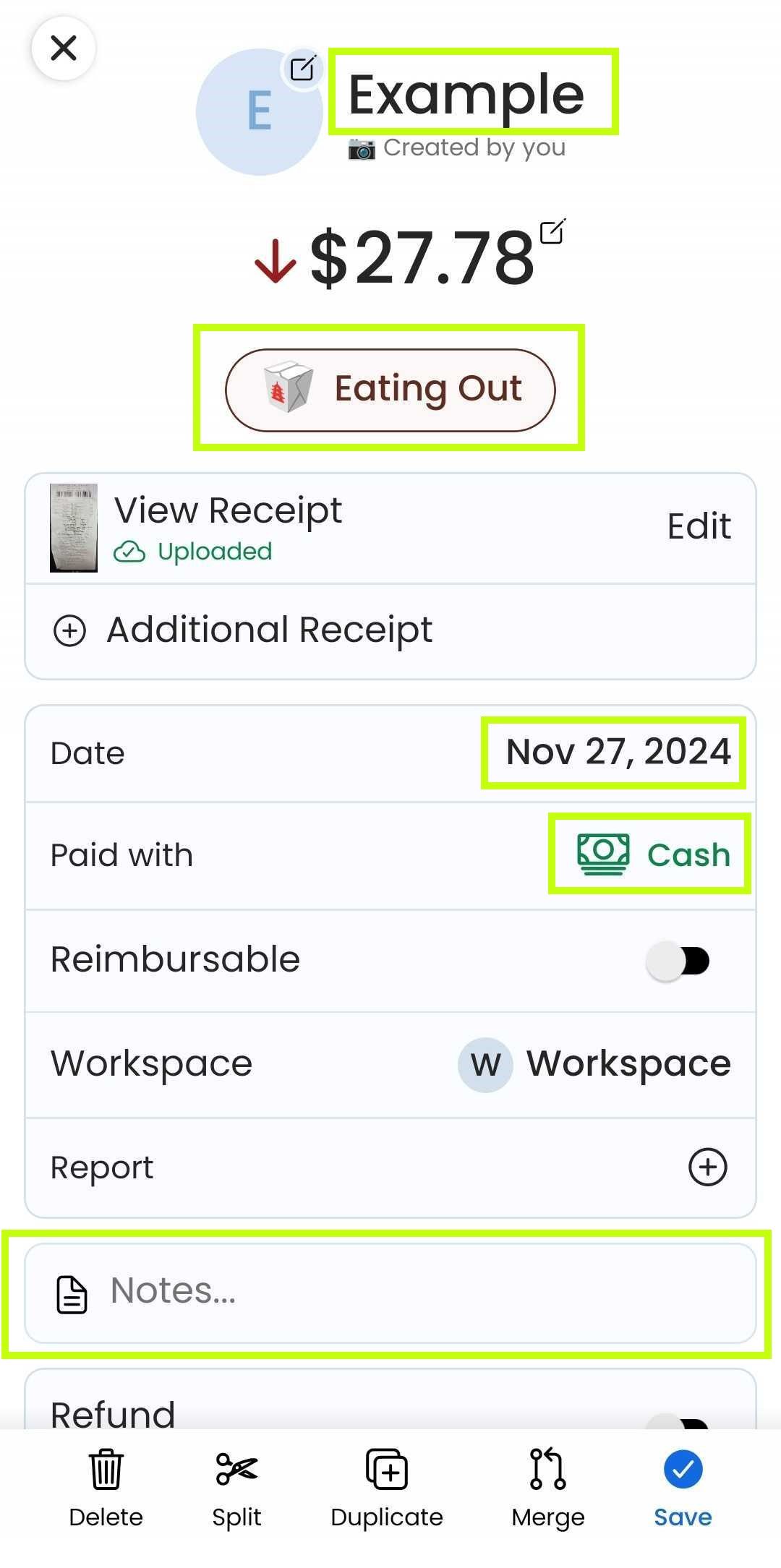
You can quickly edit an expense field by tapping it when scanning a receipt or viewing an expense. We've highlighted the fields below in green that are tappable.
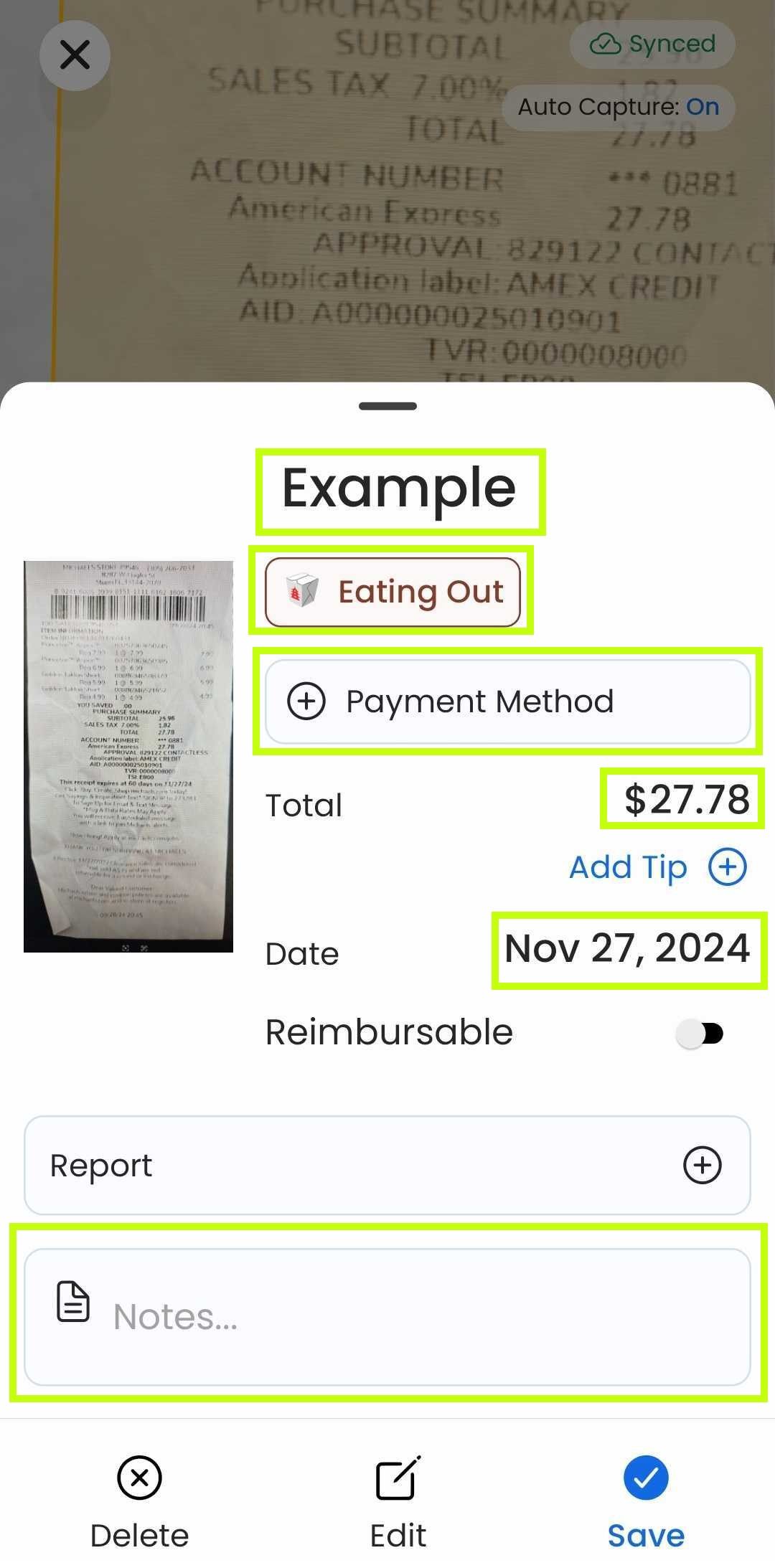
If a receipt is scanned successfully, a receipt preview will appear allowing you to quickly save or edit the receipt.
Web App
Web App
Open the web app
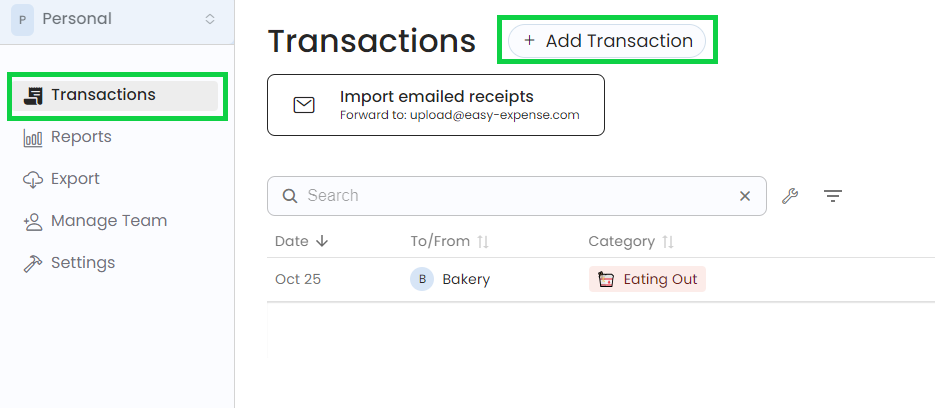
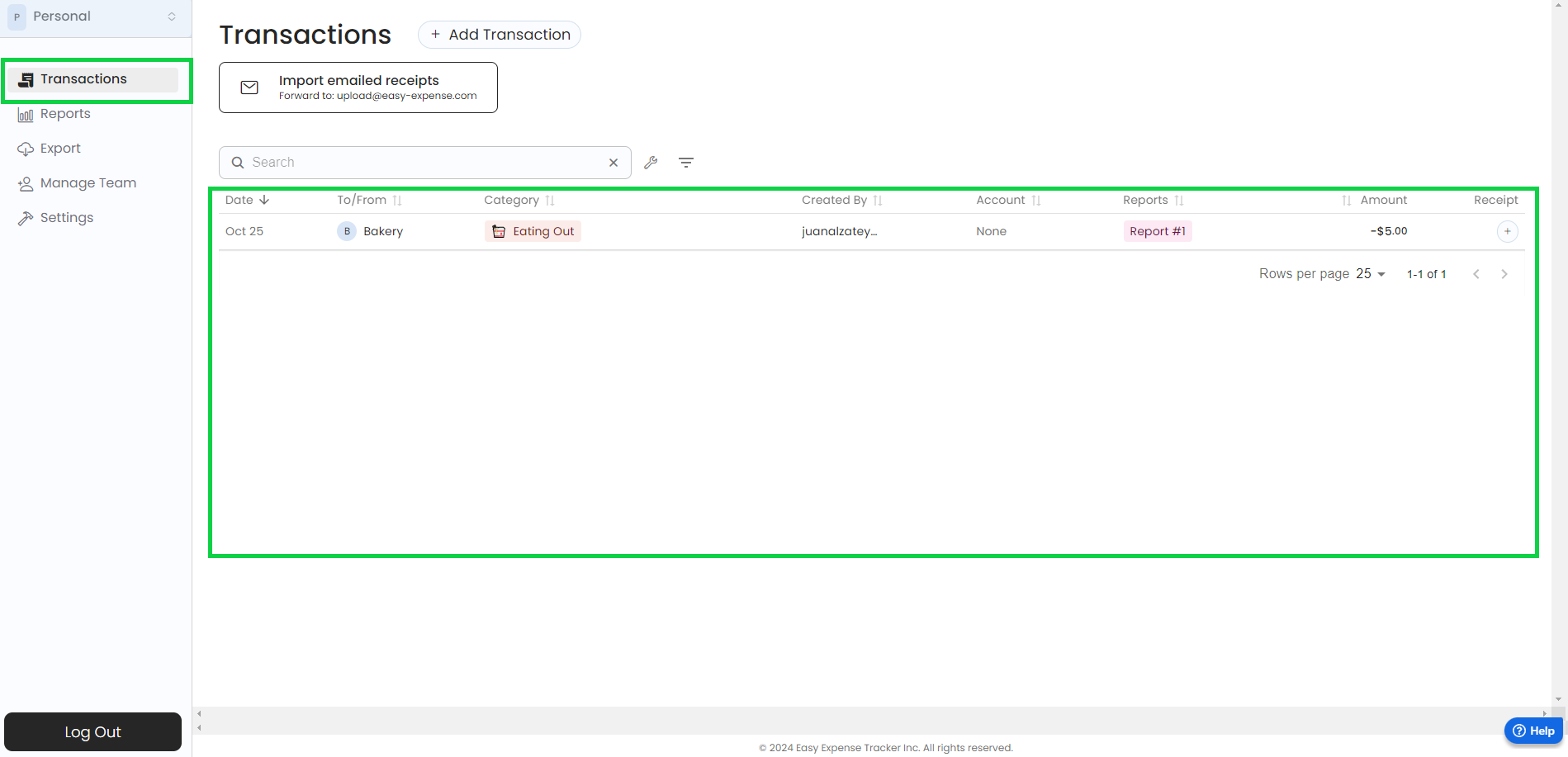
Click on “Transactions”
Click on “Add transaction”
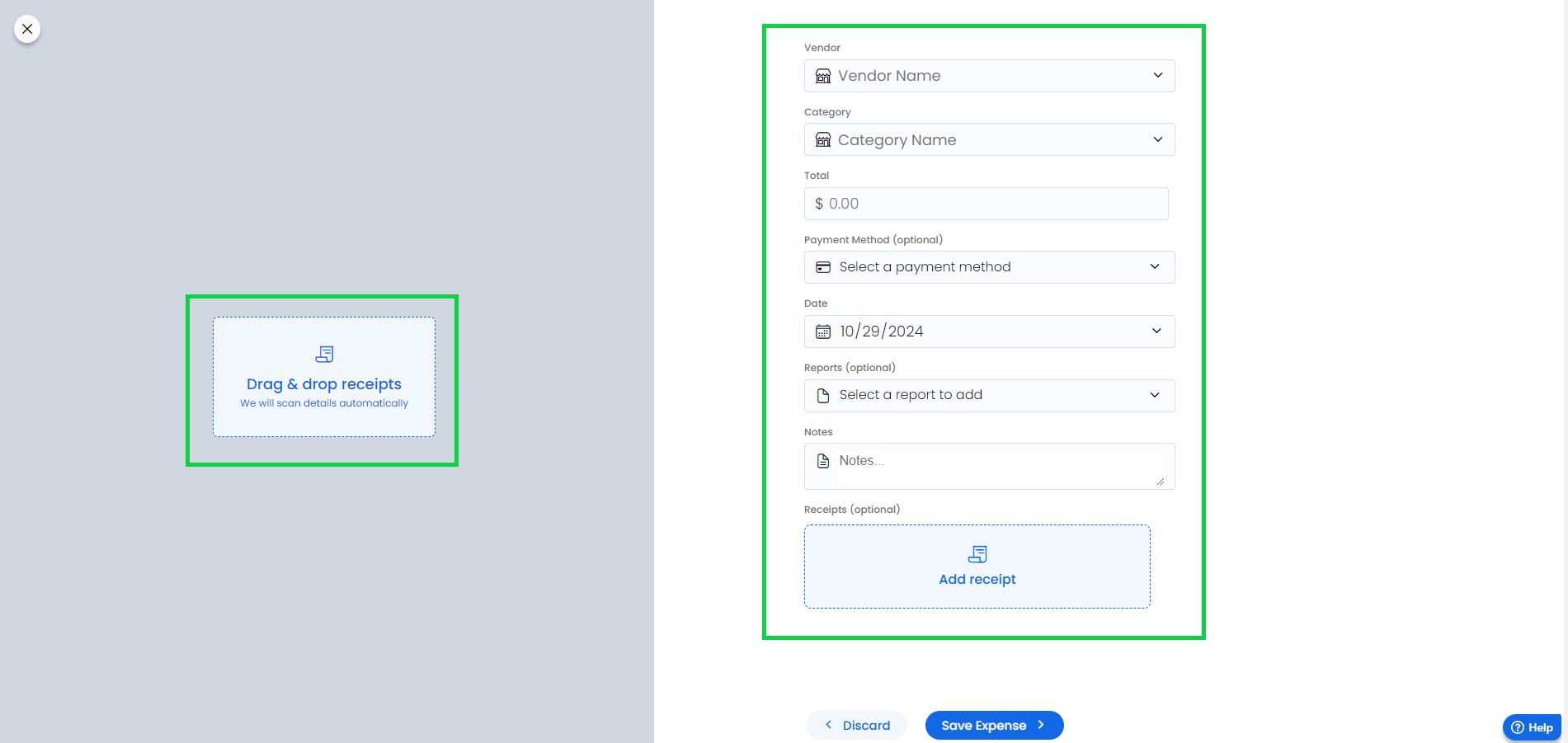
Upload your receipt (you can also drag and drop the file)
Edit the fields as needed
Viewing an expense
Mobile App
Mobile App
View an expense from the "Transactions" tab by tapping on the expense.
Web App
Web App
Open the web app
Click on “Transactions”
Click on the expense you want view
Was this helpful?
Still need help? Share an idea