Automatic Reconciliation Reports
Last updated 3 months ago
Reconciliation reports will match the expense transactions in your CSV bank statement to expenses in your workspace (based on the exact date & total). It’ll let you see which receipts are missing and allow you to edit the expense if any corrections are needed.
Note: This feature currently only works for expenses and does not support income transactions.
After reconciling, you’ll receive a file:
The “Reconciled” file will contain your original transactions and data from your workspace
The “Unmatched” file will contain expenses that were in the bank statement’s date range, but could not be matched to the bank statement
Formatting the CSV file
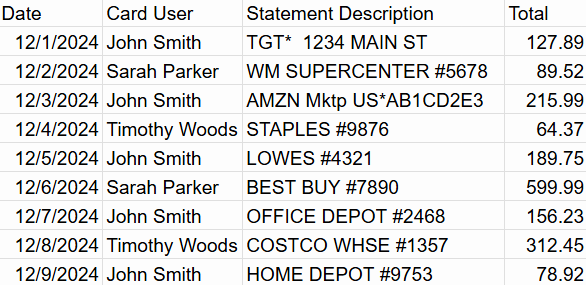
The date format of the date column should be MM/DD/YYYY (e.g., 10/31/2025 or 1/25/2025)
The total format must be positive values only (e.g., 1000, 1000.00, or 1,000.00)
Remove any rows above the “Date” and “Total” header rows. Be sure to include a header row if there isn’t one.
Examples of accepted formats
Examples of accepted formats
Example 1
Example 2
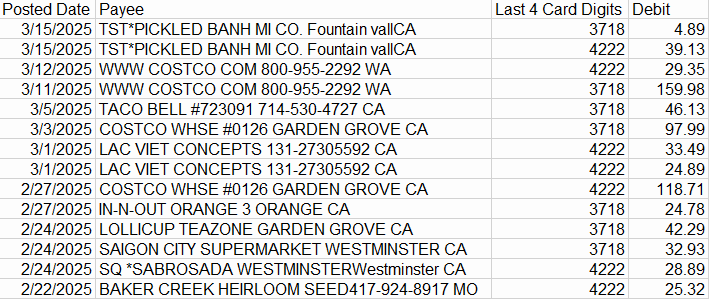
The date and total are formatted correctly in both images, and there are no extra rows above the header row.
Examples of bad formats
Examples of bad formats
Example 1
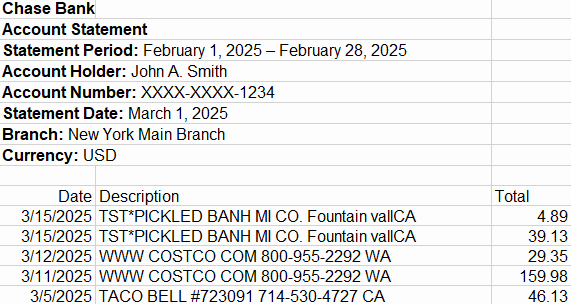
The date and total is formatted correctly, but it has additional rows above them. Deleting all rows above the “Date”, “Description”, and “Total” header row would fix the issue.
Example 2

The date is formatted incorrectly and the total has negative values in them.
How to reconcile a CSV
To reconcile a CSV, click the “Reconcile” tab and drag the CSV from your computer to the upload zone, or click the “Drag & drop credit card statement” and select the CSV file you want to reconcile.
Was this helpful?
Still need help? Share an idea