Change Workspace Settings
Last updated About 1 year ago
From the workspace settings, you can:
Manage and invite users to the workspace
Change default currency
Change distance unit
Change date format
Toggle transaction number
Hide payment methods from workspace team "members"
Leave the workspace
To Access Workspace Settings
To Access Workspace Settings
Mobile App
Mobile App
Tap the Workspaces tab (top right)
Tap "Settings"
Web App
Web App
Open the web app
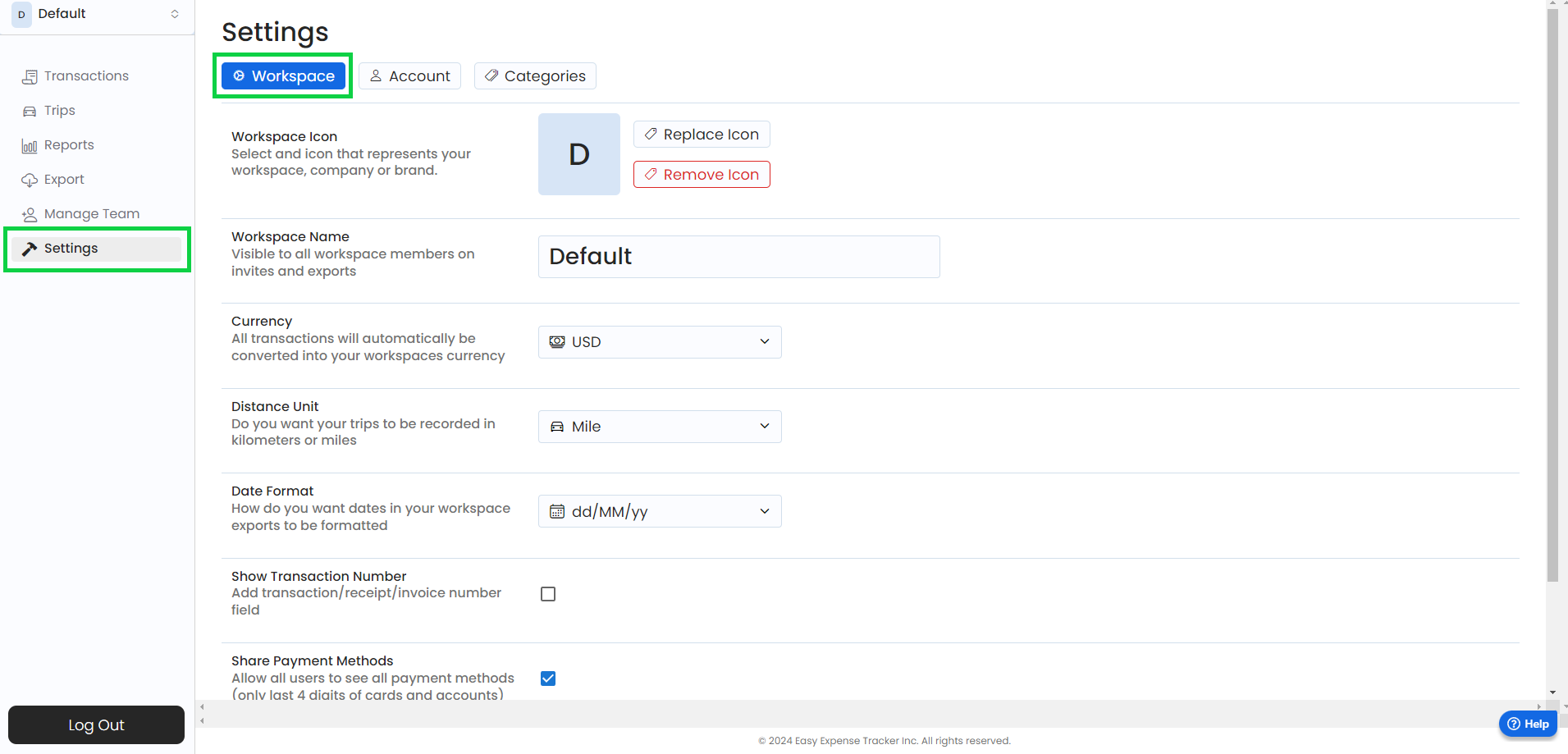
Click on “Settings”
Click on “Workspace”
Change Workspace Currency
Change Workspace Currency
Changing your Workspace currency will set the default currency for all workspaces and all transactions within the Workspace.
Mobile App
Mobile App
Select the Workspace
Tap "Settings"
Tap "Currency"
Select the desired currency
Web App
Web App
Open the web app
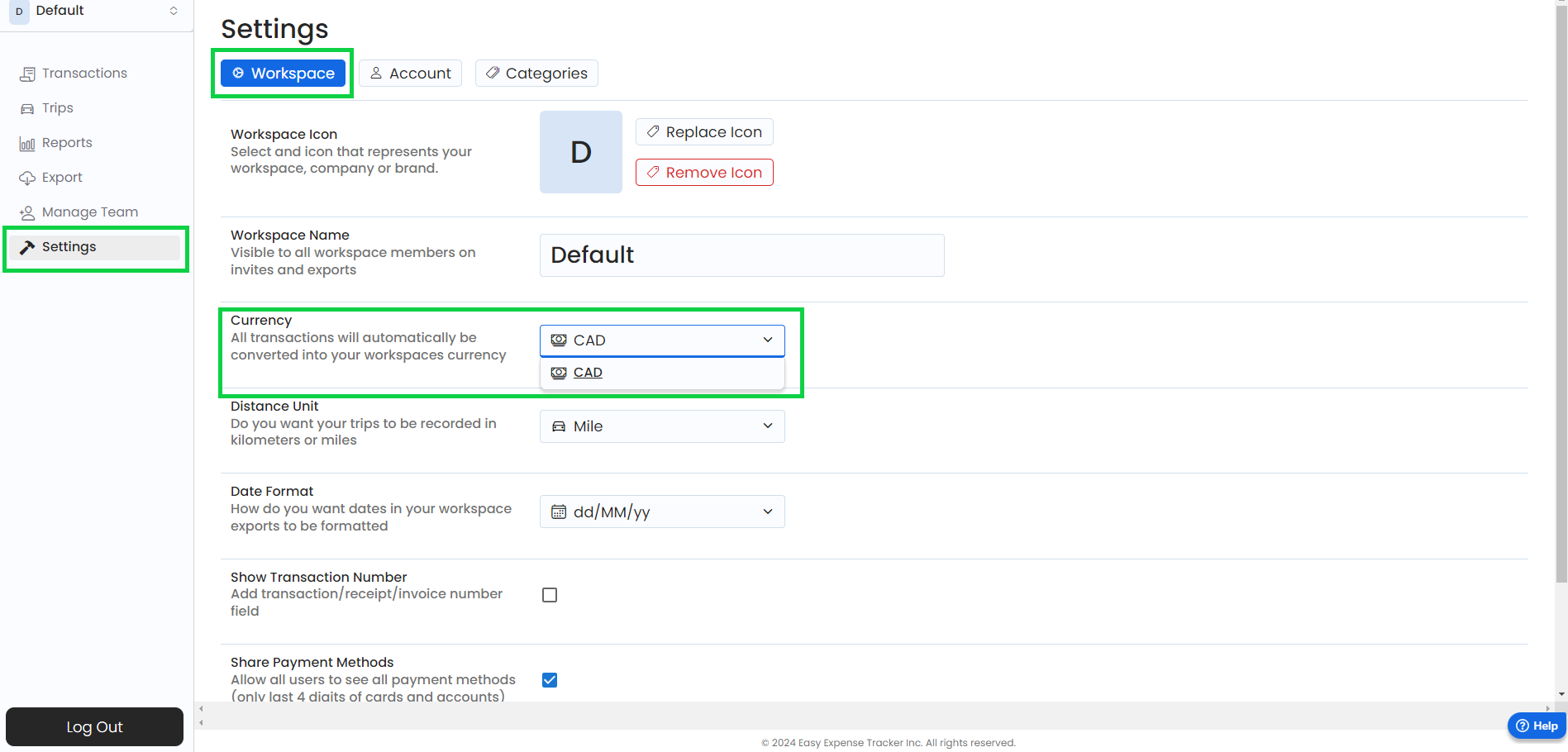
Click on “Settings”
Click on “Workspace”
Type the desired currency
Leave a Workspace
Leave a Workspace
Mobile App
Mobile App
From the workspace settings, tap "Leave Workspace."
When you leave a Workspace, you will lose access to all data within that workspace
If a team user leaves a Workspace, they will be disabled from that workspace and lose access. Data will not be affected for admins or other members of the workspace.
Web App
Web App
Open the web app
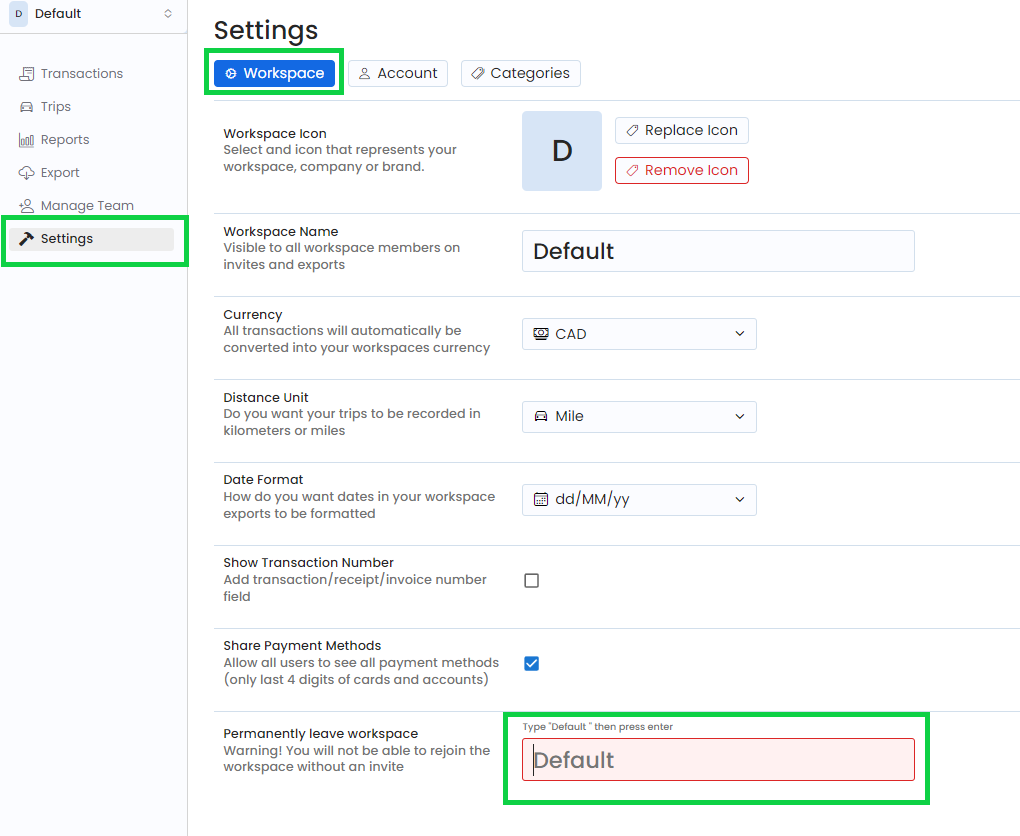
Click on “Settings”
Click on “Workspace”
Type the name of your workspace and press ENTER
To Restore a Workspace
To Restore a Workspace
If you accidentally leave a workspace, contact in-app support to restore your workspace.
Was this helpful?
Still need help? Share an idea