Delete or Restore Expenses
Last updated About 1 year ago
To delete an expense
Mobile App
Mobile App
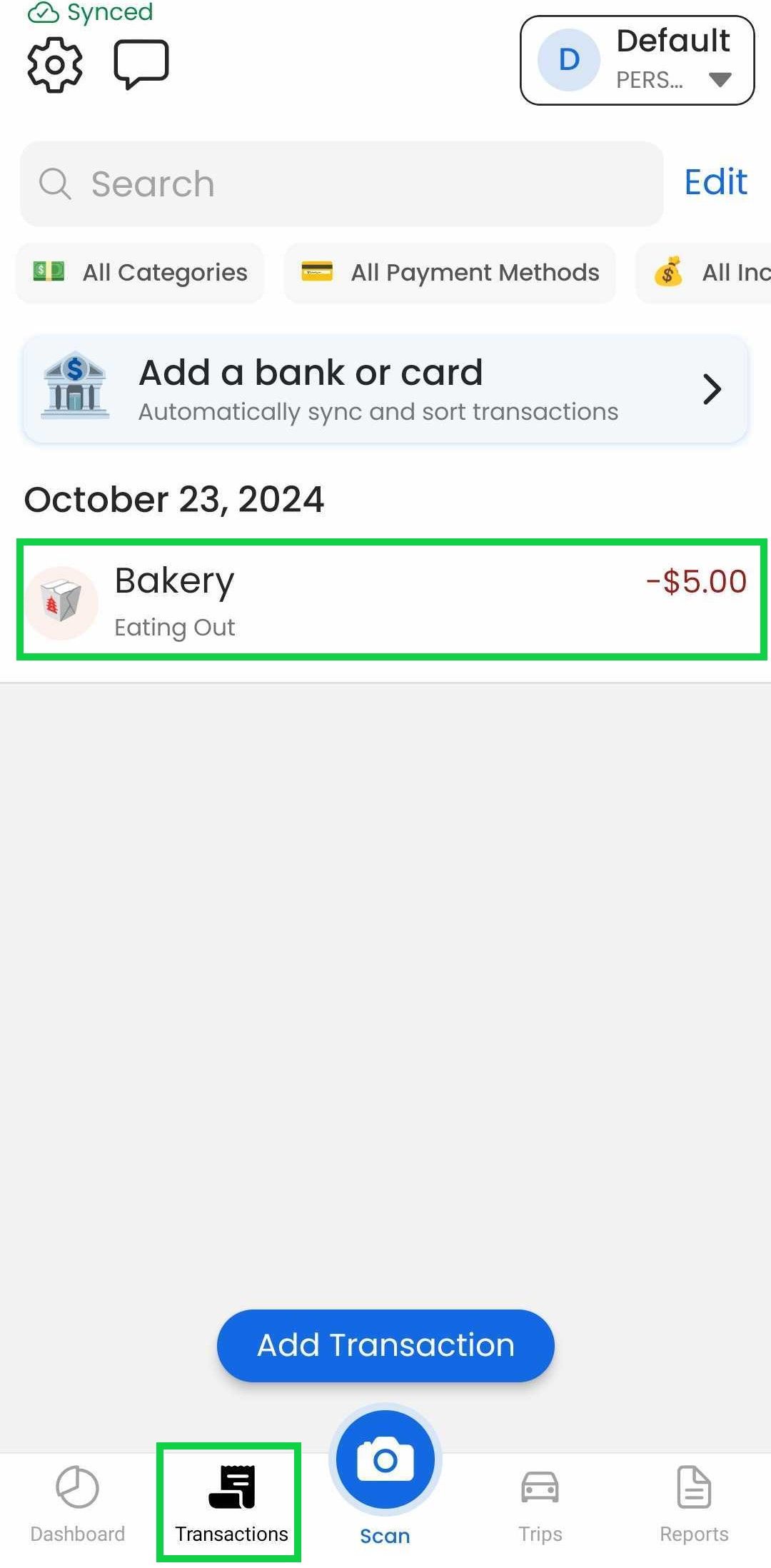
Tap the "Transactions" tab
Tap the expense you want to delete
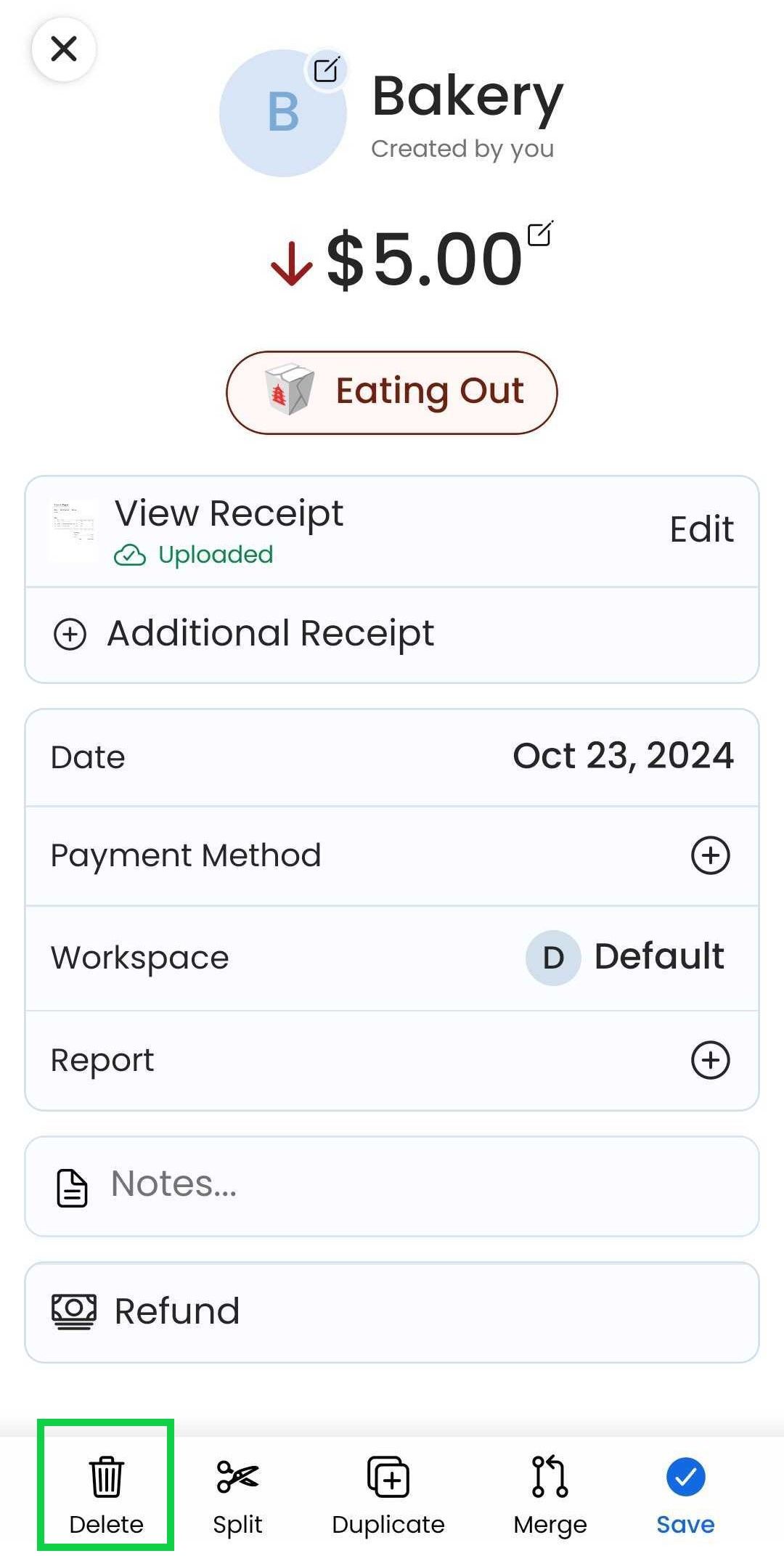
Tap “Delete”
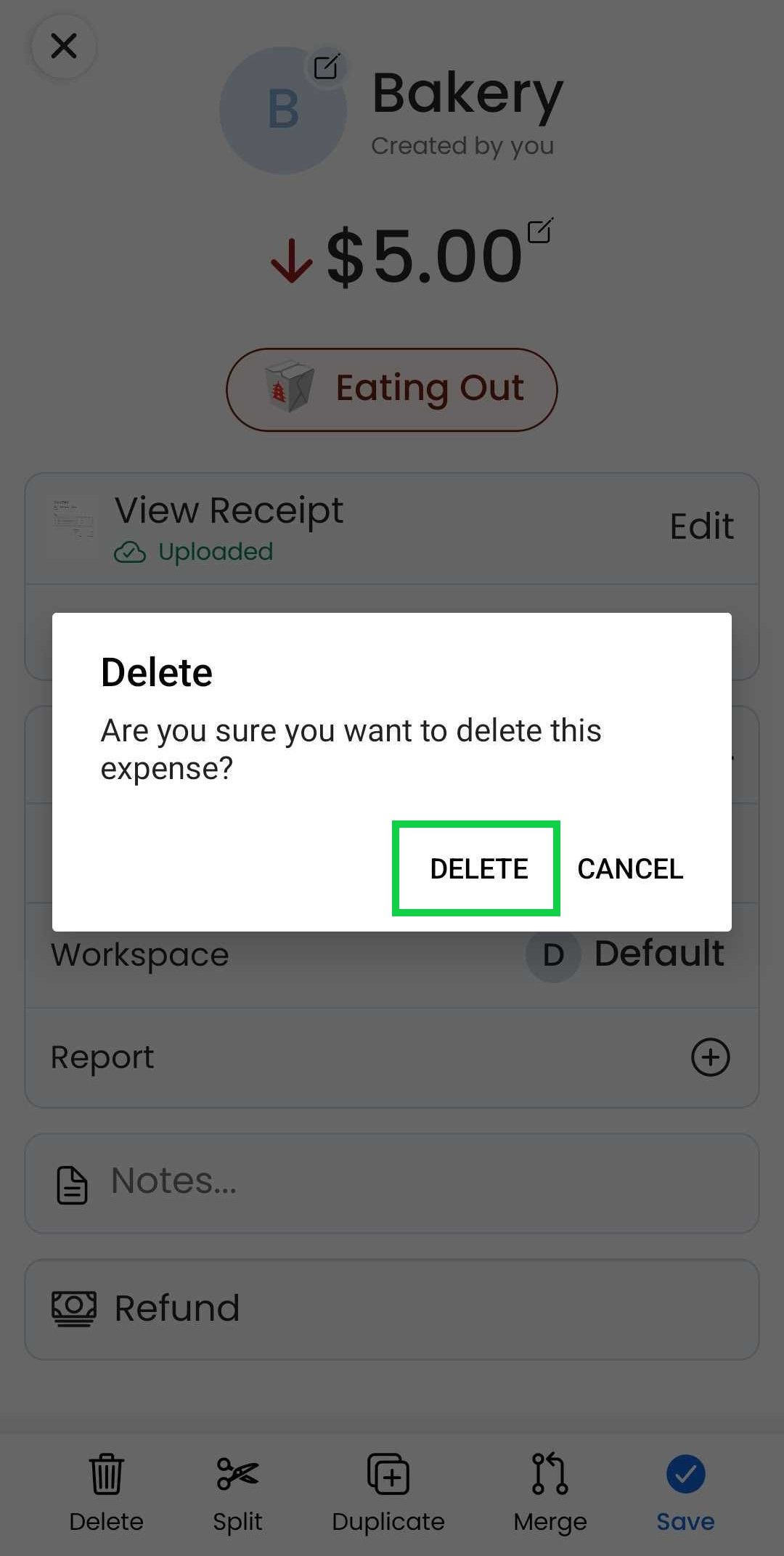
Confirm deletion
The expense will be sent to the “Trash” and can be restored later if desired.
If you are deleting transactions directly from the "Transaction Review" (bank transaction), those expenses cannot be restored.
Web App
Web App
Open the web app
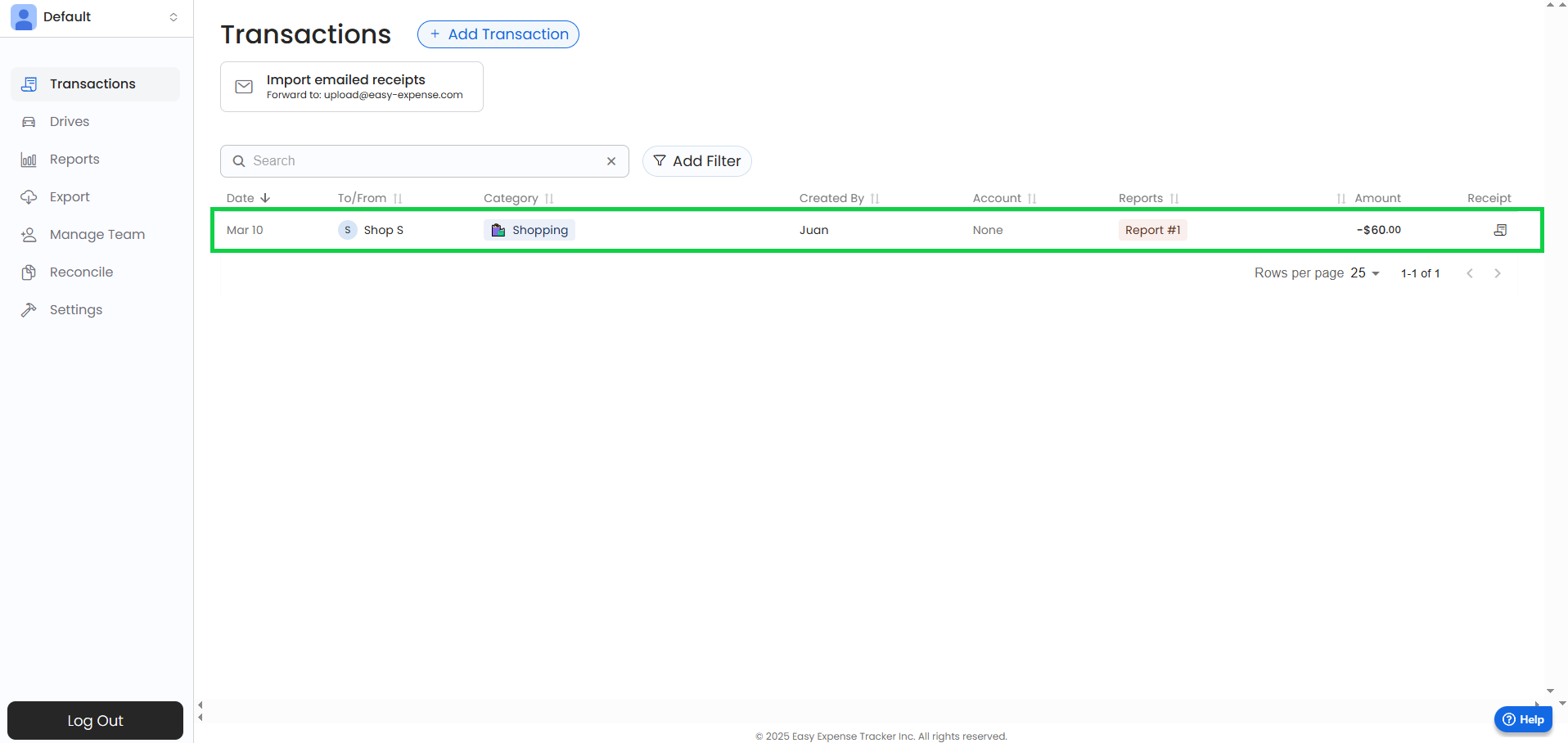
Click on “Transactions”
Click on a transaction
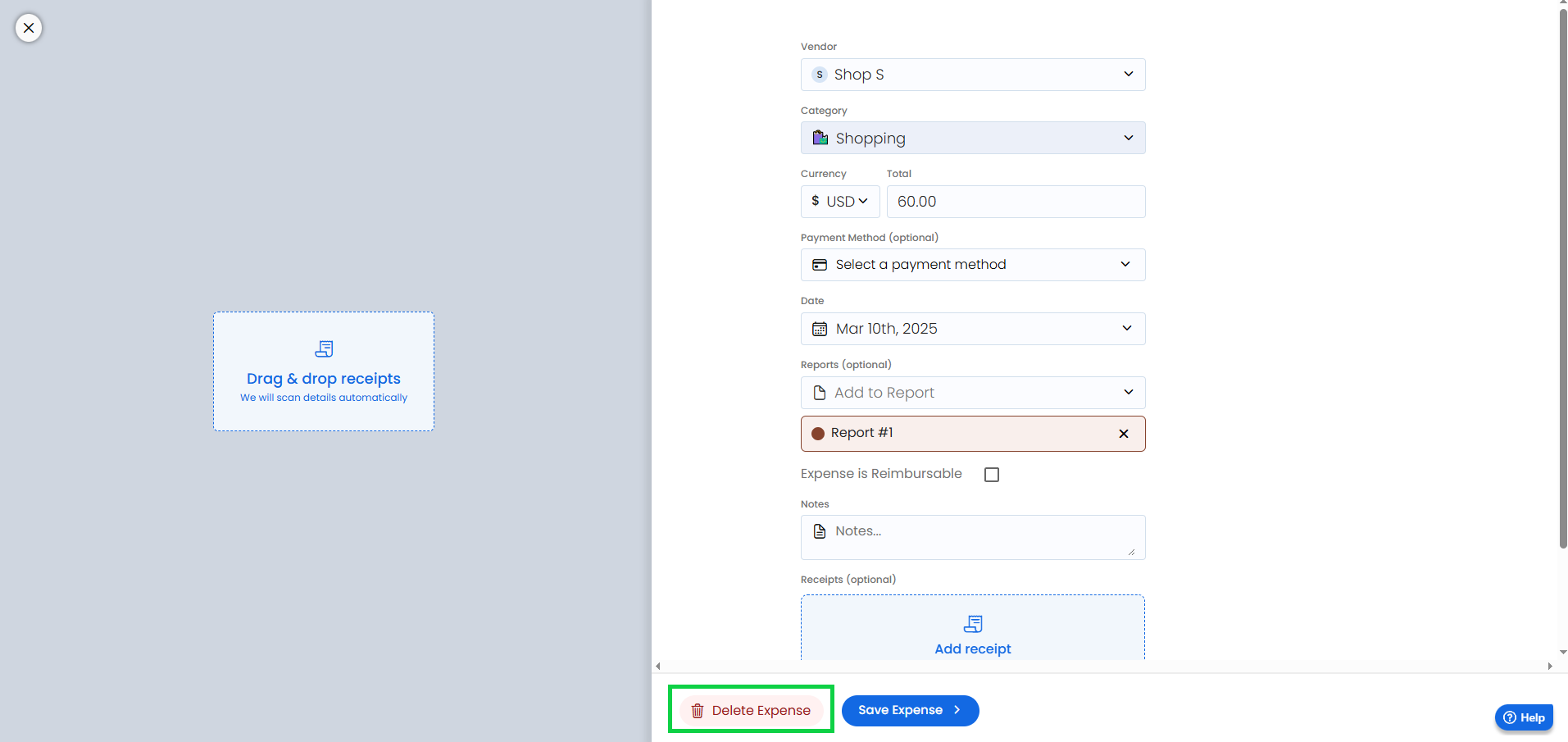
Click on “Delete Expense”
To restore a deleted expense
Mobile App
Mobile App
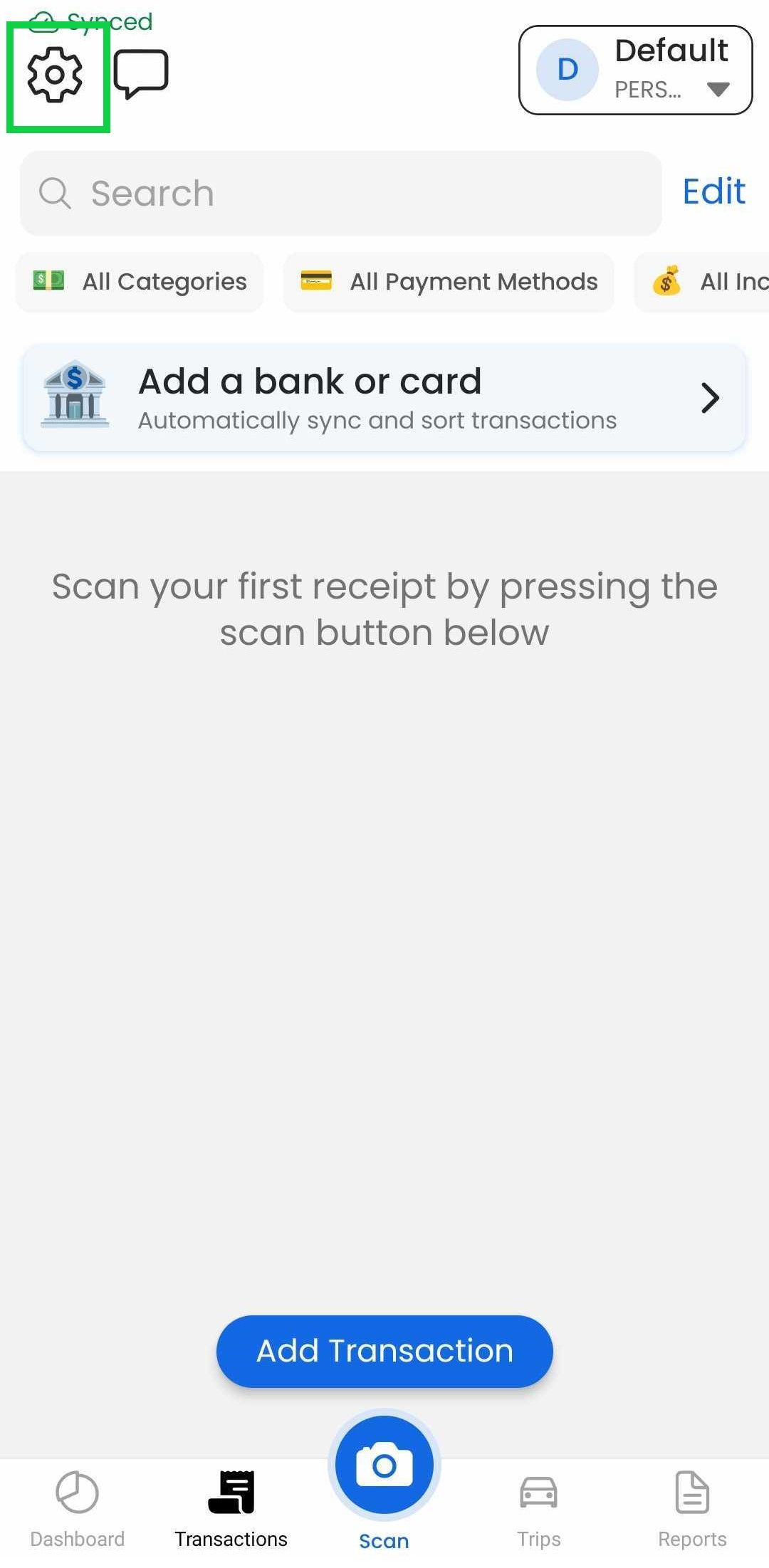
Tap the gear icon (top-left)
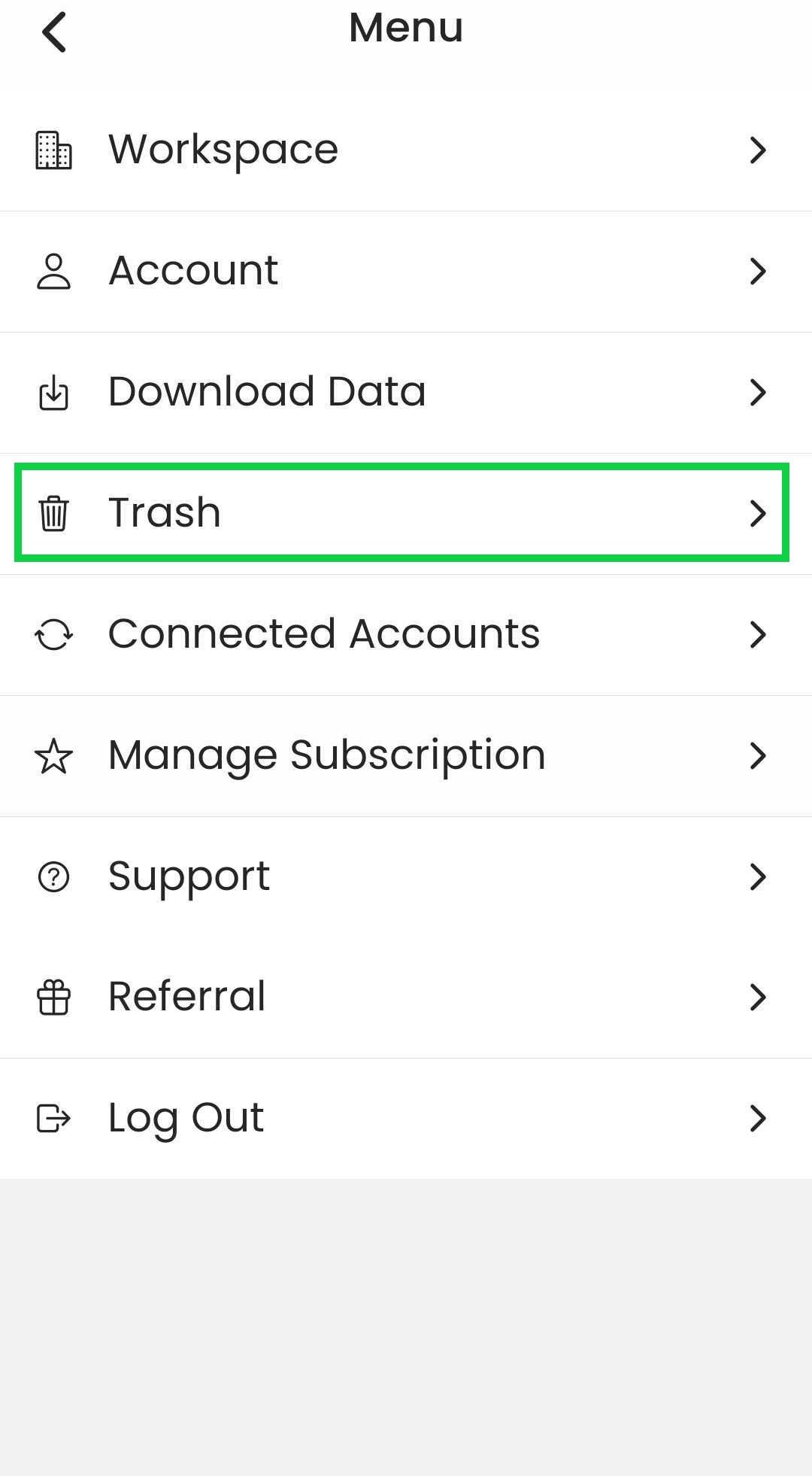
Tap “Trash”
Tap the expense you want to restore
When an expense is restored, it will reappear in the "Transactions" tab.
Web App
Web App
At the moment, this feature is only available through our Mobile App
Was this helpful?
Still need help? Share an idea